
Last updated on October 31st, 2026 at 12:51 pm
Explore the 7 best project planning software tools in 2026. Compare features, pricing, free plans, and benefits, and find the right tool for your team.
Table of Contents
Handling a project involves more than assigning tasks and setting deadlines. Project managers must coordinate stakeholders (internal and external), monitor the schedule, manage the budget, allocate resources, and ensure every activity supports the project’s objectives. Without an organized planning process, even well-funded projects can face delays, communication problems, and unexpected costs. This is where project planning software adds real value.
Project planning software gives project managers a central place to organize tasks, build schedules, assign responsibilities, track progress, and collaborate with primary and secondary stakeholders. Whether you’re managing a small business project, an IT implementation, a construction project, or several enterprise projects, the right software can make planning more efficient.
However, choosing the right project planning tool can be challenging because platforms differ in features, pricing, and capabilities. This guide compares seven popular project planning tools—Asana, ClickUp, Wrike, Hive, Trello, and Scoro—covering their features, limitations, and ideal use cases to let you decide the best fit for your project needs and requirements.
What Is Project Planning Software?
Project planning software helps managers plan, organize, schedule, monitor, and coordinate the work required to complete a project successfully. It provides teams with a shared workspace to set clear objectives, break work into manageable tasks and subtasks, set realistic deadlines, assign responsibilities, and track progress.
Instead of tracking project information across separate spreadsheets, emails, and documents, teams can use project planning software to keep everything essential in one place. Modern project planning tools offer features such as,
- A clear way to handle tasks and milestones
- Performance dashboard
- Reporting
- Resource allocation and workload management
- Team collaboration and file sharing
- Task dependencies and deadline management
- Gantt chart and Kanban boards
- Project scheduling and timeline visualization
- Integration with other business applications
For example, A marketing team preparing for a product launch can use project planning software to organize tasks such as market research, content development, advertising, website preparation, and promotion. Each task can include an assigned team member, deadline, priority, and status, helping project managers see what needs to be done, who is responsible, and whether the project is on schedule.
Read More: Project planning in project management
How Does Project Planning Software Work?
Using project planning software, you can break a project into smaller activities and link them through schedules, responsibilities, and dependencies. A typical workflow includes:
- Create a project – objectives, scope, and expected outcomes.
- Break down the work – organize the project into phases, deliverables, tasks, and subtasks.
- Assign responsibilities – allocate project tasks to team members based on their roles and availability.
- Create a schedule – set project start dates, deadlines, milestones, and task dependencies.
- Allocate project resources – identify the people, equipment, budget, and other resources needed.
- Monitor project progress – track completed tasks, outstanding work, and potential delays.
- Generate reports – review project performance and share updates with stakeholders.
7 Best Project Planning Software Tools in 2026
Choosing the right project planning software depends on the types of projects you manage, your team size, budget, and required features. Some tools focus on simple task organization and collaboration, while others provide advanced scheduling, resource management, reporting, and financial capabilities. The following seven tools offer different approaches to project planning. Let’s explore each one step by step.
Read More: Importance of project planning
Asana – Best for Team Collaboration
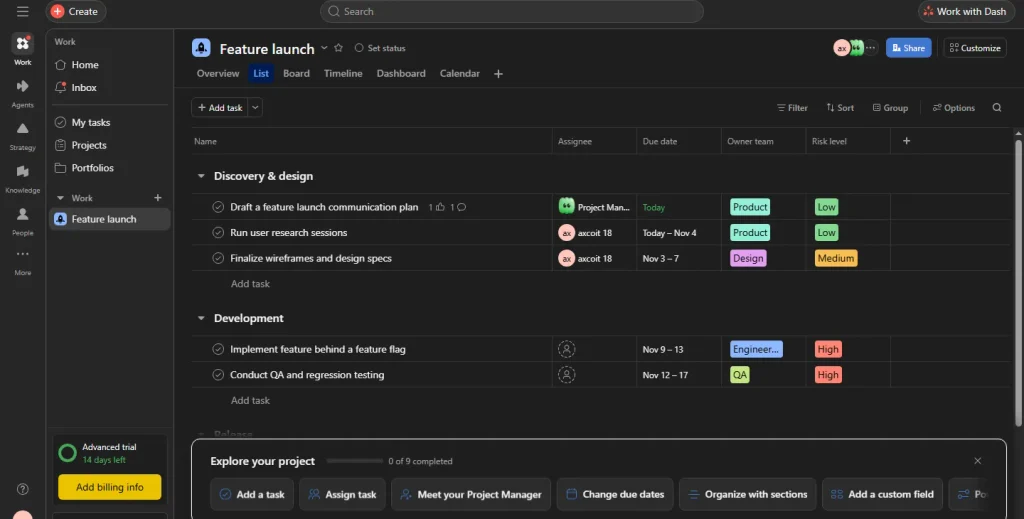
Asana allows project managers to coordinate all tasks across projects and teams. By keeping plans, tasks, and communication in one shared platform, everyone stays aligned. Real-time updates to deadlines and priorities help teams focus on what matters most.
Key Features of Asana
- Task management – create tasks, assign responsibilities, set due dates, and organize activities.
- Project overview – organize work using lists, boards, calendars, timelines, and Gantt views, depending on the plan.
- Task dependencies – identify relationships between activities and determine which tasks are blocked.
- Project dashboards – monitor project progress and review key information.
- Workflow automation – automate routine activities and task handoffs.
- Team collaboration – share updates, communicate, and coordinate work.
Advantages of Asana
- Offers a clear way to organize tasks and projects
- Helps the team understand responsibilities and deadlines
- Provides several ways to visualize projects
- Helps with project workflow automation and integrations
- Offers reporting and resource management features on eligible plans
Limitation of Asana
- Some advanced project management features require a paid subscription.
- New users may need time to learn how its features work.
- Organizations with complex resource and financial needs may require additional applications or integrations.
Asana Pricing
Asana offers a free personal plan for individuals and small-scale collaboration, alongside paid starter, advanced, and enterprise options. Check the official pricing page for current regional pricing and plan details.
Who Should Use Asana?
Asana is worth considering for marketing teams, business departments, creative teams, and organizations needing structured task management and collaboration.
ClickUp – Best for All-In-One Project Planning
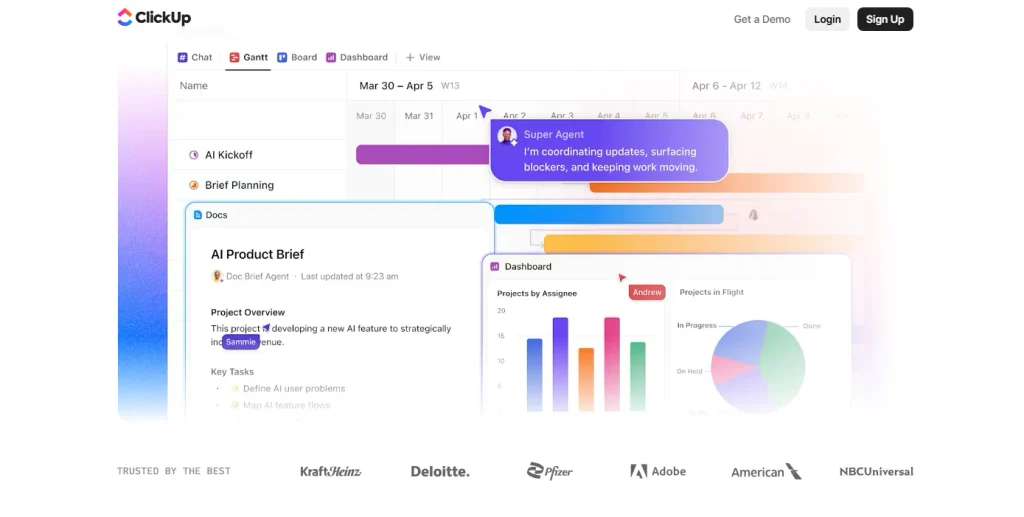
ClickUp is cloud-based software that helps project managers efficiently manage projects, team members, and tasks. With ClickUp, you can create projects, organize all work, assign them to team members, track progress, and more.
Key Features of ClicKUp
- Task management – set project tasks and subtasks, set priorities, and assign deadlines
- Multiple project views – organize work with lists, boards, calendars, and timelines
- Gantt charts – visualize project schedules and task dependencies
- Resource management – review workloads and manage team capacity with available features
- Dashboards – track project performance and key activities
- Collaboration – coordinate work using documents, comments, and communication tools
- Automation – reduce repetitive tasks with automated workflows
Advantages of ClickUp
- Brings several project management tools together on one platform
- Supports multiple project planning and visualization methods
- Provides a customizable workspace
- Includes collaboration and document management features
- Provides a free plan for users to explore its capabilities
Limitation of ClickUp
- Its extensive features can make the platform overwhelming for beginners
- Teams may need time to configure the workspace and workflows
- Some advanced capabilities are available only on higher-tier subscription plans
ClickUp Pricing
ClickUp provides a free forever plan, alongside paid core, business, and enterprise options. Check the official pricing page for current regional pricing and plan details.
Who Should Use ClickUp?
ClickUp suits teams that want a flexible platform combining task management, project scheduling, documentation, collaboration, and reporting.
Read More: ClickUp software for project management
Wrike – Best for Complex Project Planning
Wrike is the best tool for project management and collaboration. This software lets project managers manage projects from start to finish. It also offers a clean, easy-to-use interface and features like resource management and time-tracking.
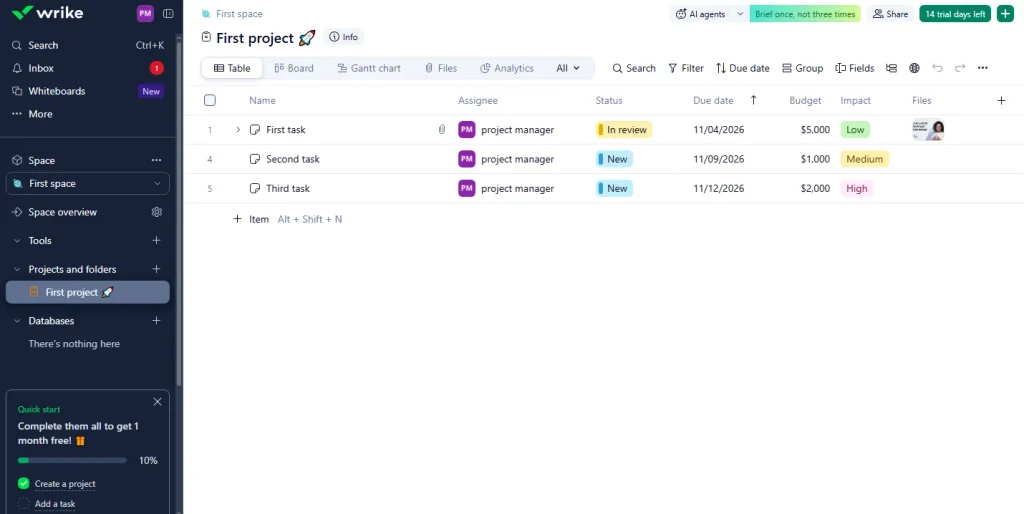
Key Features of Wrike
- Project and task management – organize projects, folders, tasks, and subtasks
- Gantt chart – visualize project schedules, milestones, and task dependencies
- Workload management – review employee capability and identify uneven workload.
- Resource planning – manage resource bookings and estimate the effort required for activities.
- Dashboard – monitor project activities and review information
- Budget management – track project planned and actual costs through supported capabilities
- Workflow management – organize project recurring processes and activities
Advantages of Wrike
- Offers advanced scheduling capabilities
- Supports Gantt chart and task dependencies
- Provides workload and resource management features
- Helps coordinate complex workflows
- Offers several project visualization options
Limitation of Wrike
- Wrike’s advanced features may require additional training
- Pricing can increase when organizations require more capabilities
- Smaller teams with a simple project may not need its full range of features
Wrike Pricing
Wrike offers a free plan and paid options, including team and business. It also offers advanced plans, and enterprise capabilities have different pricing arrangements. Check the official pricing page for current regional pricing and plan details.
Who Should Use Wrike?
Wrike is a digital tool that is worth considering for agencies, larger project teams, professional service organizations, and businesses managing multiple projects with complex scheduling and resource requirements.
Hive – Best for team workflow management
Hive is a simple, easy-to-use project management tool for teams of any size. It offers project managers valuable features, including time tracking, progress reporting, and task management. Hive also brings projects, tasks, deadlines, approvals, notes, and reminders together in one place.
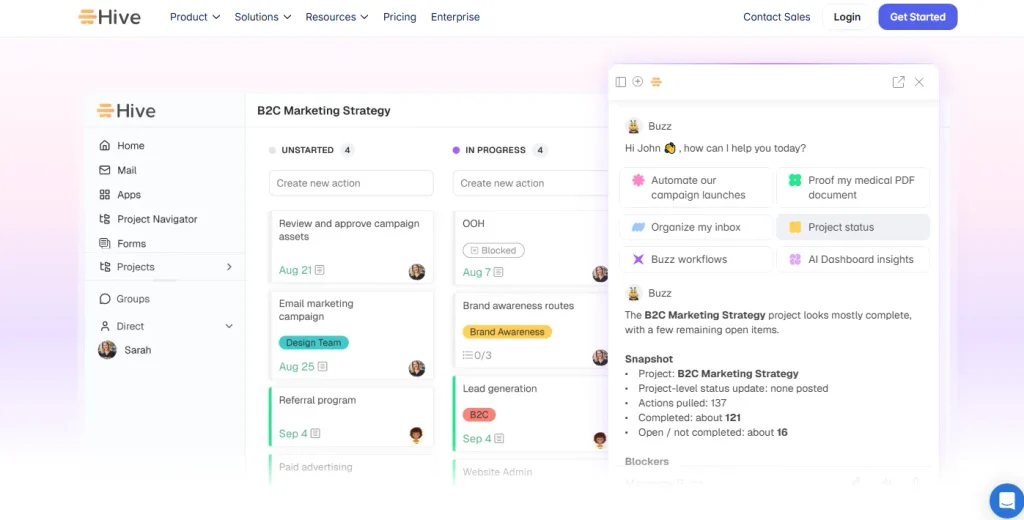
Key Features of Hive
- Project task management – create, assign, and organize
- Project views – use multiple views to organize and monitor work
- Gantt chart – visualize timeline through supported subscription plan
- Project workflow automation – automate repetitive activities
- Team collaboration – communicate through messaging and collaborative notes
- Time tracking – track project time through supported plan and features
- Reporting – monitor project information through available dashboard and reporting options
Advantages of Hive
- Combines team communication and project organization
- Provides multiple ways to view project activities
- Supports project workflow automation
- Provides a free plan for basic project management
- Offers additional capabilities through paid subscription and add-ons
Limitations of Hive
- Some Hive advanced features require a paid subscription and add-ons
- New users may need time to configure workflows
- Teams with complex requirements may need to assess the available integration and reporting options carefully.
Hive Pricing
Hive offers a free plan, with paid options including starter, teams, and enterprise. Check the official pricing page for current regional pricing and plan details.
Who Should Use Hive?
Hive is worth considering for teams that need task organization, project visibility, collaboration, and workflow coordination in a shared workplace.
Trello – Best for Visual Project Planning
Trello is a free project management application based on the Kanban board. This helps you organize projects and collaborate effectively. Managers can use task or idea cards to coordinate teams or work independently. Flexible sharing lets team members collaborate on cards anywhere and plan workflows for projects of any size.
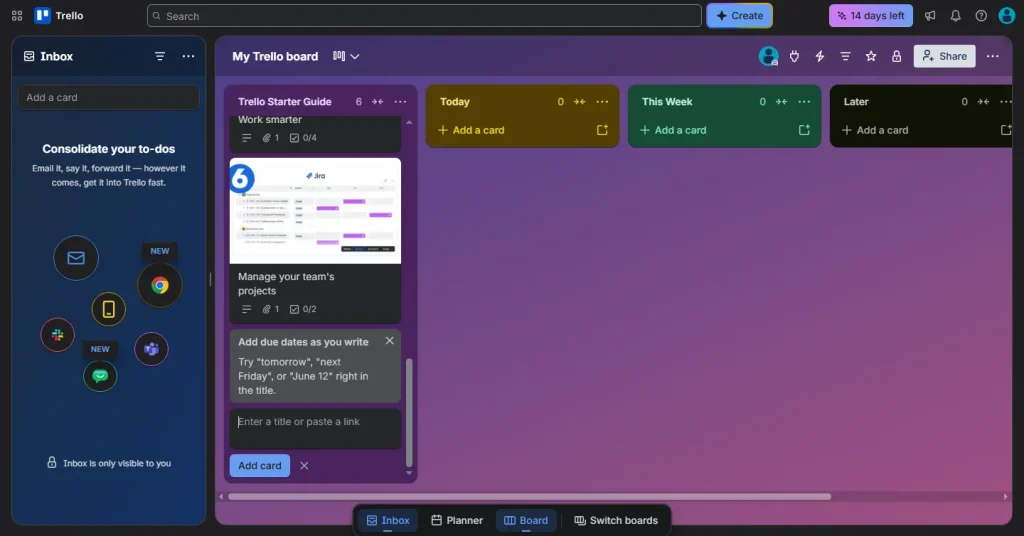
Key Features of Trello
- Trello boards – create separate boards for workflows and projects
- Lists – organize project tasks according to their progress and category
- Cards – represent individual tasks and activities
- Task assignments – allow assigning cards to team members
- Due dates – set deadlines for activities
- Checklists – break project tasks into smaller steps
- Automation – automate certain board activities using built-in automation
- Integrations – connect Trello with other business applications through power-ups and integrations
Advantages of Trello
- Provides a simple visual approach to task management
- Easy for beginners to understand
- Supports project teams to monitor task progress
- Offers a free plan
- Useful for organizing smaller projects or workflows
Limitation of Trello
- It provides basic Kanban features that may not be sufficient for complex project scheduling.
- Advanced planning options may require paid plans or additional integrations
- Managing multiple complex projects can become difficult without a suitable board structure
Trello Pricing
Trello offers a free plan, with paid options including Standard, Premium, and Enterprise. Check the official pricing page for current regional pricing and plan details.
Who Should Use Trello?
Trello suits freelancers, small businesses, marketing teams, and individuals who prefer simple visual project planning.
Read More: Why do project managers use Trello project management software
Freedcamp – Best for Budget-Friendly Project Management
Freedcamp is a web-based project management tool that is designed for people who need help managing multiple projects simultaneously.
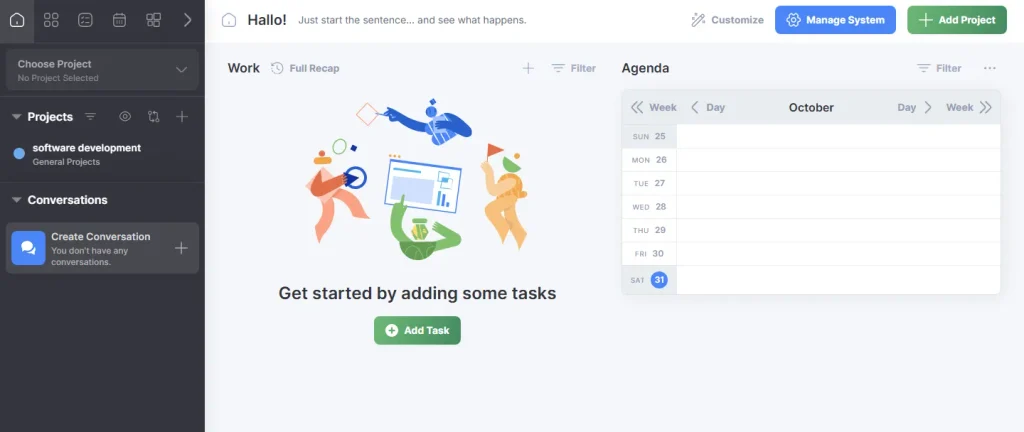
Key Features of Freedcamp
- Project task management – create and organize
- Calendar – view project activities and important dates
- Milestones – identify important project deadlines and achievements
- Time tracking – monitor time spent on project activities through available features
- Discussion – share ideas and communicate about project activities
- File management – organize project-related documents
- Project applications – access additional features through eligible plans and add-ons
Advantages of Freedcamp
- Provides a free plan with unlimited users, projects, and tasks, subject to its fair use policy
- Offers essential project organization features
- Provides affordable entry-level paid plans
- Supports collaboration and project discussion
- Offers additional applications for businesses with more advanced requirements
Limitation of Freedcamp
- Some advanced applications need higher subscription plans
- Users may need to understand the different applications and settings
- Businesses requiring advanced enterprise resource planning may need a more specialized solution
Freedcamp Pricing
Freedcamp offers a free plan, with paid Pro, Business, and Enterprise options. Check the official pricing page for current regional pricing and plan details.
Who Should Use Freedcamp?
Freedcamp is worth considering for freelancers, startups, small businesses, and budget-conscious teams looking for essential project management functionality.
Scoro – Best for Business and Resource Planning
Scoro is another popular project management tool among project managers because it offers strong project planning and management features.
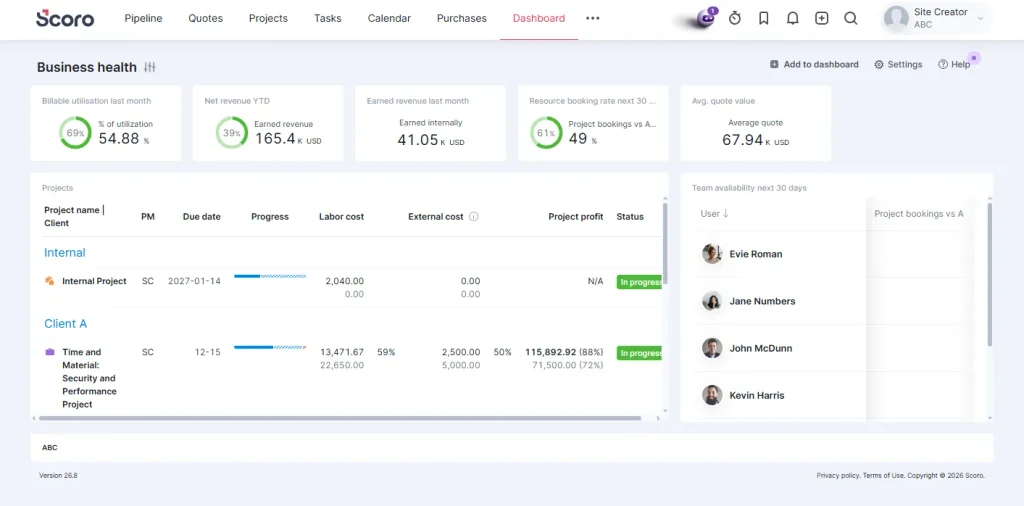
Key Features of Scoro
- Project management – organize tasks, activities, and deliverables
- Gantt chart – visualize project schedules, dependencies, and milestones
- Project resource planning – allocate employees and review resource availability
- Time tracking – monitor project working hours and project time
- Budget management – estimate project costs and review financial performance
- Financial management – support invoicing, expenses, and financial reporting through relevant applications
- Reporting – monitor project and operational performance
Advantages of Scoro
- Connect project management with business operations
- Provides resource and capacity planning features
- Supports budgeting and financial visibility
- Helps service-based organizations monitor project delivery
- Provides multiple business applications with one platform
Limitation of Scoro
- Its extensive features may be unnecessary for teams that only need basic task management
- Pricing and available applications depend on the selected packages
- Its minimum user requirements may make it less suitable for individuals and very small teams
Scoro Pricing
Scoro offers configurable subscription combinations. Pricing increases according to the applications selected and the organization’s requirements. Check the official pricing page for current regional pricing and plan details.
Who Should Use Scoro?
Scoro is best for agencies, consulting firms, professional services businesses, and organizations that want to connect project planning, resource utilization, time tracking, and financial management.
Project Planning Software Comparison: Features, Pricing, and Best Uses
Choosing a project planning tool can be challenging, as each tool offers different features and subscription plans. The comparison table below highlights the main differences, so you don’t have to review each product individually.
| Software | Best for | Notable capabilities | Free option |
| Asana | Team collaboration | Tasks, timeline, reporting | Yes |
| ClickUp | All-in-one planning | Gantt chart, dashboards, automation | Yes |
| Wrike | Complex projects | Gantt chart, workload management | Yes |
| Hive | Team workflows | Task views, automation, collaboration | Yes |
| Trello | Visual planning | Kanban boards and cards | Yes |
| Freedcamp | Budget-conscious teams | Tasks, calendar, milestone | Yes |
| Scoro | Business and resource planning | Gantt chart, resource and financial management | Free trial |
How to Use Project Planning Software: A Practical Example
Understanding software features is helpful, but knowing how to apply them to a real-world project is even more important. Consider a company planning to develop a new website within 60 days. This project involves: a project manager, designer, content writer, developer, and testing specialist.
As a project manager, you can use project planning software to organize the work through the following steps. Read more: Tips for successfully introducing new tools to the project team.
Step 1: Define project objectives and scope
This first step establishes what the project must achieve. For this website development project, the objectives may include:
- Designing a professional website
- Creating the required website pages
- Developing website functionality
- Testing your website performance
- Launching the website within 60 days
You also define the project scope, expected deliverables, constraints, and acceptance criteria. These details give the team clear direction.
Step 2: Break the project into tasks
After defining the objectives, divide the project into smaller activities as below.
| Main activity | Tasks |
| Research | Competitor research and requirement gathering |
| Design | Website layout and visual design |
| Content | Writing and editing website content |
| Development | Front-end and back-end development |
| Testing | Functionality and performance testing |
| Launch | Final approvals and website deployment |
As a project manager, you can create these activities in the software and organize them into phases.
Step 3: Assign tasks and set deadlines
Each task should have a responsible team member and a realistic completion date.
| Task | Responsible person | Target duration |
| Competitor research | Project manager | 5 days |
| Website design | Designer | 10 days |
| Content development | Content writer | 12 days |
| Website development | Developer | 20 days |
| Website testing | Testing specialist | 8 days |
| Final launch | Project manager and developer | 5 days |
These are illustrative durations, not a complete critical-path schedule. Some activities may overlap, while others depend on earlier work. You should establish deadlines and dependencies within the software.
Step 4: Create a project schedule
After assigning tasks, organize the activities into a project timeline. A Gantt chart helps visualize the start and end dates, task dependencies, and milestones.
| Project phase | Illustrative timeline |
| Research and requirement | Days 1-5 |
| Design | Days 6-15 |
| Content development | Days 6-17 |
| Development | Days 16-35 |
| Testing | Days 36-45 |
| Final approval and launch | Days 46-60 |
You can also use the schedule to monitor upcoming activities and identify possible delays.
Step 5: Track project progress and manage changes
Once the project starts, regularly review task updates and compare progress against the original schedule. If delays occur, investigate the cause and adjust testing or launch dates as needed. Dashboards and reports can also help you review: completed project activities, ongoing tasks, delayed activities, upcoming deadlines, resource availability, and changes to the project schedule.
If unexpected problems arise, you should assess their impact on constraints before updating the plan. This practical example shows how project planning tools help translate project objectives into organized activities and measurable outcomes.
Project Planning Software Vs. Project Management Software
Project planning software and project management software are closely related, but they don’t always serve the same purpose.
- Project planning software helps managers plan and organize project activities before and during execution. It enables them to set schedules, define tasks, allocate resources, and identify dependencies.
- Project management software offers a wider range of capabilities, such as planning, execution, collaboration, financial management, reporting, risk management, and project portfolio management.
| Comparison | Project planning software | Project management software |
| Main purpose | Organize project activities | Manage the overall project |
| Schedulling | Core capabilities | Usually included |
| Task management | Core capabilities | Core capability |
| Resource management | May be includes | Often available |
| Budget management | May be limited | Available in some platforms |
| Reporting | Planning and schedule reports | Border project performance report |
| Project portfolio management | Not always included | Available in advanced platforms |
Important💡Many modern tools combine both functions, allowing businesses to manage their entire project life cycle on a single platform.
What Problems Does Project Planning Software Solve?
Handling a project without a centralized planning system can be challenging, especially when multiple stakeholders and tasks are involved. Project planning software supports and addresses common challenges, such as:
| Project management software | How Software Helps |
| Missed deadline | Provides schedule, reminders, and deadline tracking |
| Unclear responsibilities | Assign tasks and ownership to team members |
| Poor resource allocation | Helps managers review workloads and resource availability |
| Budget overruns | Supports cost estimation and financial monitoring where available |
| Communication gaps | Provides shared updates, comments, and collaboration features |
| Lack of project visibility | Offers dashboard, timelines, and progress reports |
| Disorganized activities | Keeps tasks, documents, and schedules organized |
Important💡Software alone can’t solve every project management challenge. Project managers still need to make decisions, communicate with stakeholders, resolve conflicts, and adapt to changing requirements.
Conclusion
Many project managers use project management software such as Asana, Trello, Wrike, Hive, Freedcamp, Score, and ClickUp while planning their projects. However, before selecting this software, you must understand your project needs and requirements to increase the chances of its success.


